
LineOne - Yealink Phone and Voicemail Quick Reference Guide (T7 & T8 Series)
📄 Download PDF:
🖼️ T8 Button Layout Reference:
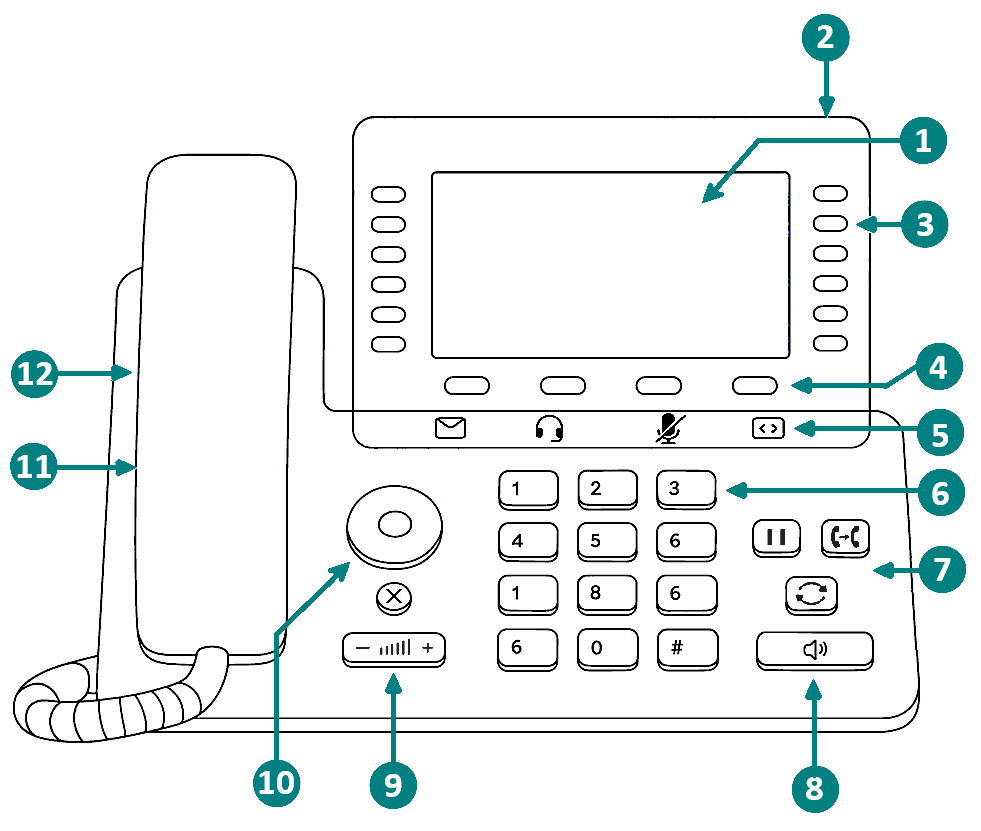
Legend:
No. |
Button Label |
|---|---|
1 |
Phone Screen |
2 |
Message LED Indicator |
3 |
Line Keys (Used for BLF, One-Touch Keys, Park, etc) |
4 |
Soft Keys |
5 |
Headset / Mute / Message / Screen Toggle |
6 |
Keypad Keys |
7 |
Hold / Transfer / Redial |
8 |
Speakerphone Key |
9 |
Volume Key |
10 |
Navigation / OK / Cancel Keys |
11 |
Speaker (located under the handset) |
12 |
Reversible Tab for Wallmount phones (located under the handset) |
Use this layout to identify specific button references mentioned throughout this guide.
☎️ Making a Call
Dial the number.
Press Call or lift the handset.
You can switch between handset and speakerphone using the speaker button.
🔁 Transferring a Call
Press Transfer (on-screen or fixed key).
Dial the extension or use a 1-touch button.
(Optional) Announce the call.
Press Transfer again or hang-up
To cancel the transfer and resume the original call, press End, then Resume.
📩 Voicemail Transfer
Press Transfer.
Press To VM or 7.
Dial the extension or use a 1-touch button.
Press Transfer again or hang-up
📦 Call Park
To Park: Press the Park x button during a call and hang up.
To Retrieve: Press the Park x button on any phone.
⏸ On Hold
Press Hold (on-screen or fixed key).
Press Resume to retrieve the call.
Held calls can only be resumed from the same phone.
📞 Call Pickup
When another phone rings, press Pickup or dial *35.
Press the blinking 1-touch button or dial the extension.
👥 Conference Calls
While on a call, press Conference.
Dial the next number and wait.
Press Conference again.
Repeat to add more participants.
If the party is unavailable, press Cancel, then Resume to return.
📚 Call History
Access via the History button.
Navigate lists (All, Missed, Placed, Received).
Scroll to select.
Press Call.
To save a number, select Option > Add to Contact.
📇 Local Directory
Access with the directory button.
Scroll through contacts.
Press Call.
🔁 Redial
Press the redial button once to view call list.
Press again to call the last number.
📣 Paging
Requires a pre-programmed button by LineOne Support.
📠 Email-to-Fax
Email to
11digitnumber@instant-fax.com(no dashes).Attach the document.
Only attachments are faxed; subject/body are ignored.
📬 Voicemail Setup
Initial Setup
Press voicemail button or dial 5001, then
#.Enter default password 159753, then
#.Follow prompts to set name, greeting, and password.
Sample greeting: "Hi, this is [Your Name]..."
Change Name or Password
Press the Message key or Dial 5001, then
#.Enter password +
#.-
Press 5 (Options), then:
1 to change password
2 to record name
Changing voicemail password also changes your portal password.
Change Greeting
Press the Message key or Dial 5001, then
#.Enter password +
#.-
Press 6 (Greetings), then:
1 Record
2 Review
3 Select
📥 Checking Messages
From your phone: Press the Message key or Dial 5001, then
#.From another extension: Dial 5000, then
#., enter extension + password
Forward a Message
Press 3, 1 after listening.
Record intro (optional) +
#Press 2 to confirm, enter the recipient’s extension
Press 1 to edit, or 2 to send
Message Playback Options
1 Save
2 Replay
3 Forward
4 Delete
5 Skip
6 Reply (internal only)
7 Rewind 15s
8 Pause/Resume
9 Fast Forward 15s
🖥 Personal Admin Portal
Use for presence, rules, speed dial, recording, etc.
Only Advanced Users have access. Dial 611 for support.
Login
Go to: https://portal.line.one
Login:
extension@domain(provided by LineOne)Password: default 159753 or your voicemail password
Change Password
Click your name > Profile
Enter and confirm new password > Save
Updates both portal and voicemail password.
Portal Sections
Messages: Listen/delete voicemail
Contacts: View presence
Answering Rules: Ring settings & forwarding
Call History: View past calls
Call Record: Listen/download recordings
Call Record requires activation by LineOne.
📍 206 Rue Louis XIV, Lafayette, LA 70508
☎ Dial 611 from your LineOne phone or call 337-417-9020
📧 support@line.one
⚠️ 911 Disclaimer
LineOne phones may not connect to 911. Always provide your physical location to emergency responders and have an alternate method available (e.g., cell phone).
LineOne is not liable for damages or risks from 911 call failures.
GS.io-062717