
Contact Center Dashboards Guide
Every LineOne Contact Center account starts with two ready-made dashboards, and you can build your own alongside them. This guide explains what each default dashboard shows, how to customize a dashboard, and how to build a new one.
On this page
📊 Overview
The Home Dashboard gives an at-a-glance view of your team and queues. Agents & Contacts gives agent-by-agent and queue-by-queue detail. Both update in real time.
Switching dashboards. Click the dashboard name button at the top left of the screen (for example, HOME DASHBOARD). A menu lists every dashboard available to you, plus New Dashboard to build your own.
Who can see dashboards. Every user sees a dashboard when they log in, whatever their role, and data access can be limited so each user sees only what is relevant to them. Dashboards work on desktop and mobile, and the layout adapts to the screen. They are built for live monitoring; use Reports for history and trends.
Controls on every dashboard. Three icons sit at the top right of each dashboard:
Icon |
What it does |
|---|---|
Pencil (Edit) |
Enter edit mode to change the dashboard's cards and layout |
Stacked squares (New Window) |
Open the dashboard in a new browser window, useful for a wallboard or second monitor |
Box with arrow (New Tab) |
Open the dashboard in a new browser tab |
🏠 Home Dashboard
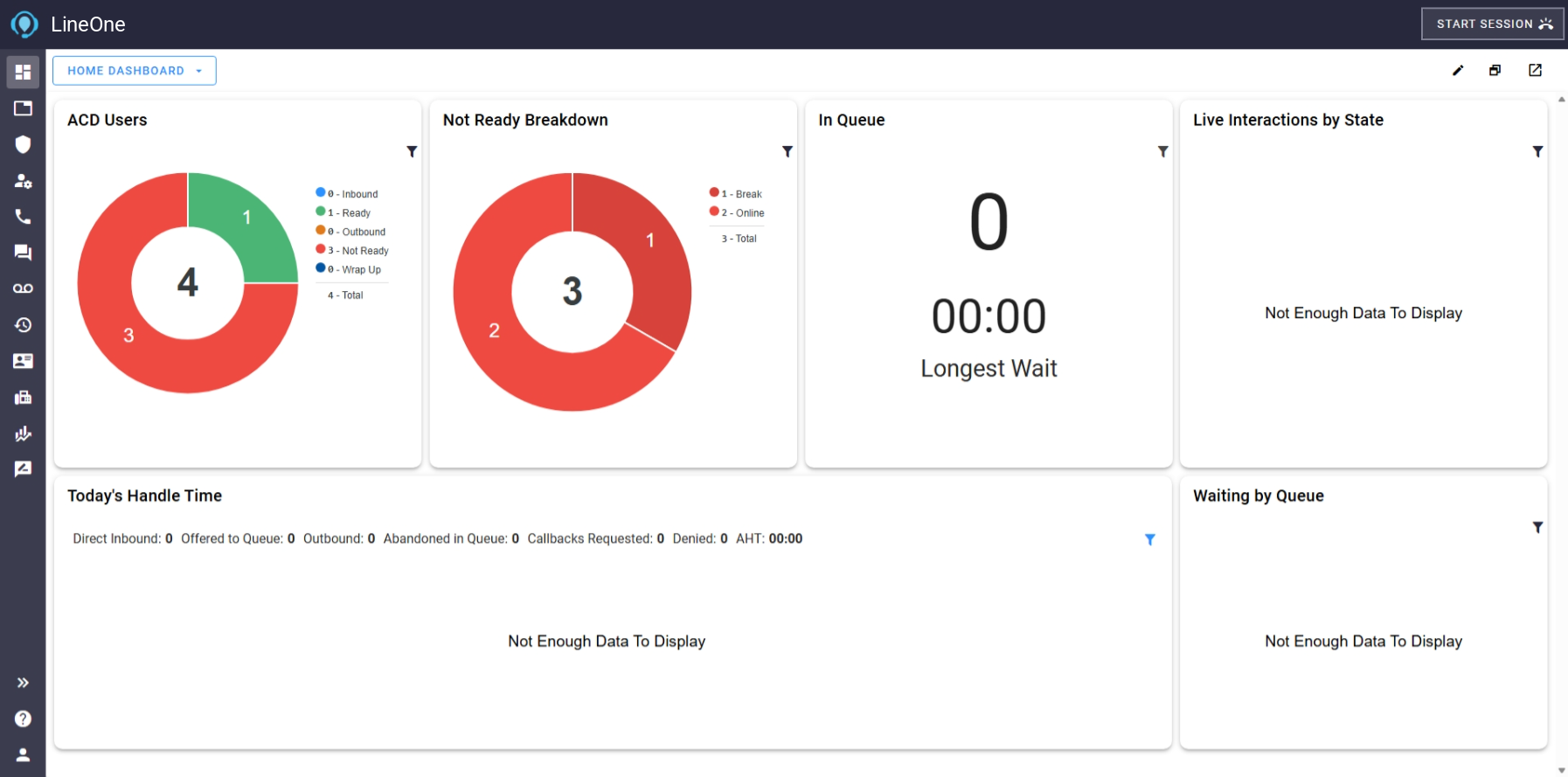
The Home Dashboard answers one question quickly: how is my team doing right now? It shows six cards covering agent availability, queue wait, and today's call activity.
Card |
What it shows |
|---|---|
ACD Users |
A donut of logged-in agents by state: Inbound, Ready, Outbound, Not Ready, and Wrap Up, with the total in the center. Use it to see whether enough agents are Ready to take calls. |
Not Ready Breakdown |
A donut splitting Not Ready agents by the reason they selected (for example, Break), with the total in the center. Reason names come from the agent states set up for your account. |
In Queue |
The number of contacts waiting right now and the Longest Wait time. A rising count or wait time is the signal to free up agents. |
Live Interactions by State |
Current interactions grouped by state. |
Today's Handle Time |
Today's totals for Direct Inbound, Offered to Queue, Outbound, Abandoned in Queue, Callbacks Requested, Denied, and AHT (average handle time). |
Waiting by Queue |
Waiting contacts broken out by queue, to show which queue needs attention when several are busy. |
Filtering a card. Each card has a filter icon at its top right. Use it to narrow what that card counts. The filter options adjust to the data the card shows, so each card offers its own choices.
💡 Empty cards are normal. "Not Enough Data To Display" or zeros mean there is no activity yet for that card, not that something is broken.
👥 Agents & Contacts Dashboard
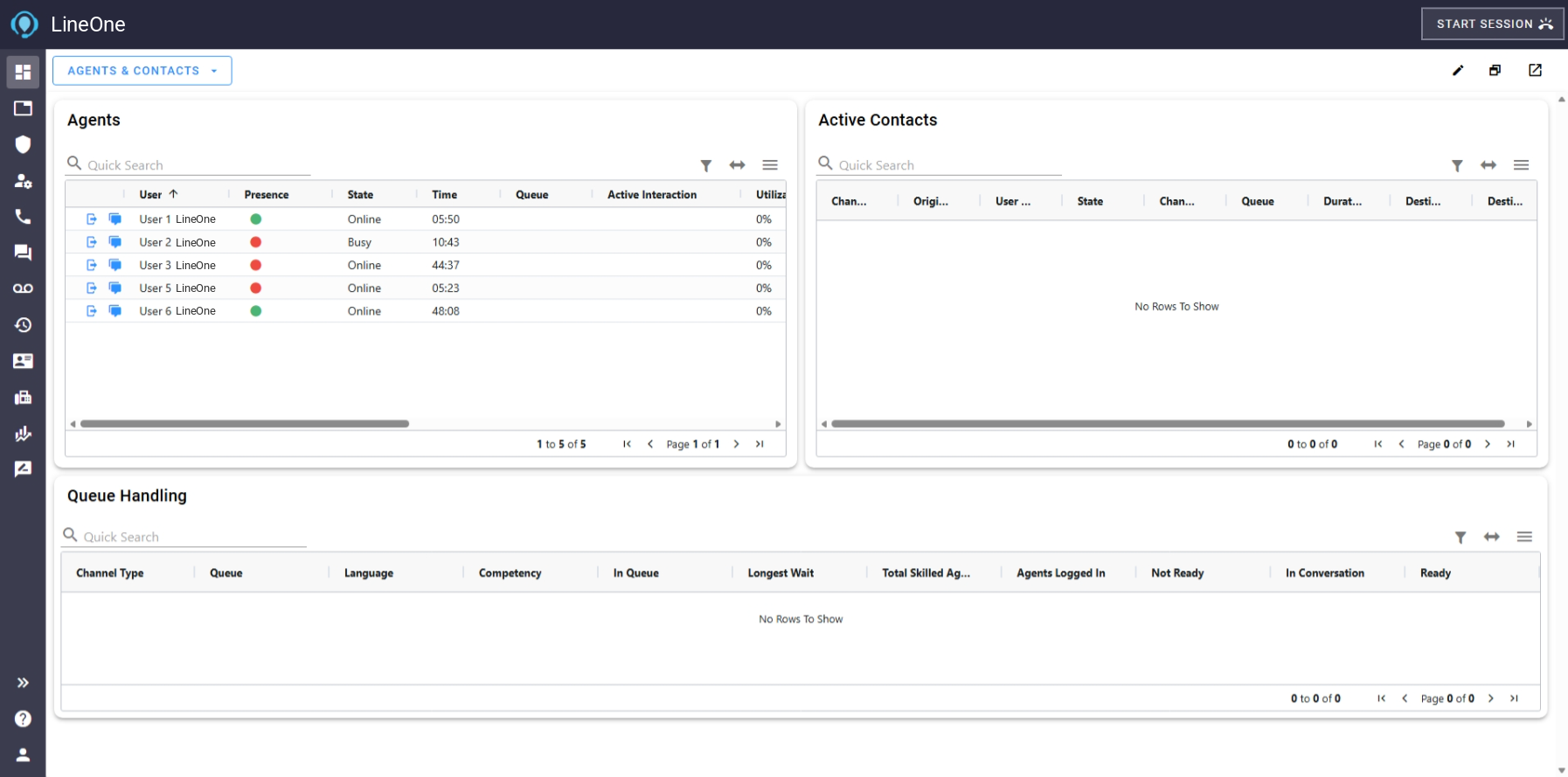
Agents & Contacts is the detail view: one row per agent, one row per live contact, and one row per queue. Use it when the Home Dashboard shows a problem and you need to see who or which queue is behind it.
Agents
Lists every agent with their current status. A green presence dot means available; red means unavailable.
Column |
Meaning |
|---|---|
User |
The agent's name |
Presence |
Green or red availability dot |
State |
The agent's current state, such as Online or Busy |
Time |
How long the agent has been in that state |
Queue |
The queue the agent's current interaction came from |
Active Interaction |
The interaction the agent is handling now |
Utilization |
Share of the agent's available time spent actively handling interactions. Unlike occupancy, it counts handling time rather than total logged-in time. |
Scroll right for more columns: Productivity, Profile, Avg Talk, Avg Wrap, Inbound, Outbound, Denied, and others. User ID is hidden by default.
Two icons start each agent row: Force Logoff signs the agent out, and Message User sends the agent a message.
Active Contacts
Lists every call, chat, or message in progress.
Column |
Meaning |
|---|---|
Channel |
The specific channel the contact arrived on |
Originator |
Who started the contact, such as the caller |
User Handling |
The agent working the contact |
State |
The contact's current state |
Channel Type |
Voice, SMS, chat, or email |
Queue |
The queue the contact is in |
Duration |
How long the contact has been active |
Destination / Destination Description |
Where the contact was sent, with its description |
User ID, Session ID, and Band ID are also available but hidden by default.
Queue Handling
One row per queue, showing demand against staffing.
Column |
Meaning |
|---|---|
Channel Type |
Voice, SMS, chat, or email |
Queue |
The queue's name |
Language / Competency |
The language and skill the queue routes on |
In Queue |
Contacts waiting now |
Longest Wait |
The longest current wait |
Total Skilled Agents |
Agents assigned to the queue |
Agents Logged In |
Assigned agents currently logged in |
Not Ready / In Conversation / Ready |
How those logged-in agents are split right now |
Table tools
Each of the three tables has the same controls: Quick Search to find a name or value, a filter icon, and a menu icon to choose which columns show. Checked columns are visible; check or uncheck a column to show or hide it. You can also pin and move columns. Page controls sit at the bottom of each table. Scroll right to see columns that do not fit.
🛠️ Customizing a Dashboard
You can change which cards appear on a dashboard and filter what each card shows. Small changes, like filtering a card to your queues, need no edit mode at all.
Without editing the layout
Use a card's filter icon to narrow it to the queues or agents you care about.
In table cards, use Quick Search and the column menu to focus on what matters, then scroll or page through results.
Editing the layout
Open the dashboard you want to change.
Click the pencil icon at the top right to enter edit mode.
Click Add Card + to add cards. Each card has a Delete icon to remove it, an Edit icon beside its name to rename it, and a resize handle in its bottom right corner. Drag a card to move it; the other cards shift around it automatically.
Click Save to keep your changes, or Cancel to discard them.
💡 Your changes are yours alone. You can edit Home Dashboard and Agents & Contacts directly. Dashboard changes are tied to your user account, so no other user sees them. To delete a dashboard, open it, click the pencil, click Remove Dashboard, and confirm with Yes.
➕ Building Your Own Dashboard
A new dashboard takes about a minute: name it, add cards from the card library, and save. Build one per role or purpose, such as a supervisor wallboard or a single-queue view.
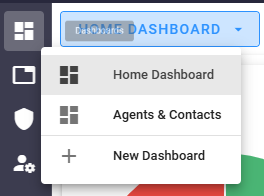
Click the dashboard name button at the top left and choose New Dashboard.
Replace Untitled at the top of the screen with a clear name, for example "Sales Queue Wallboard."
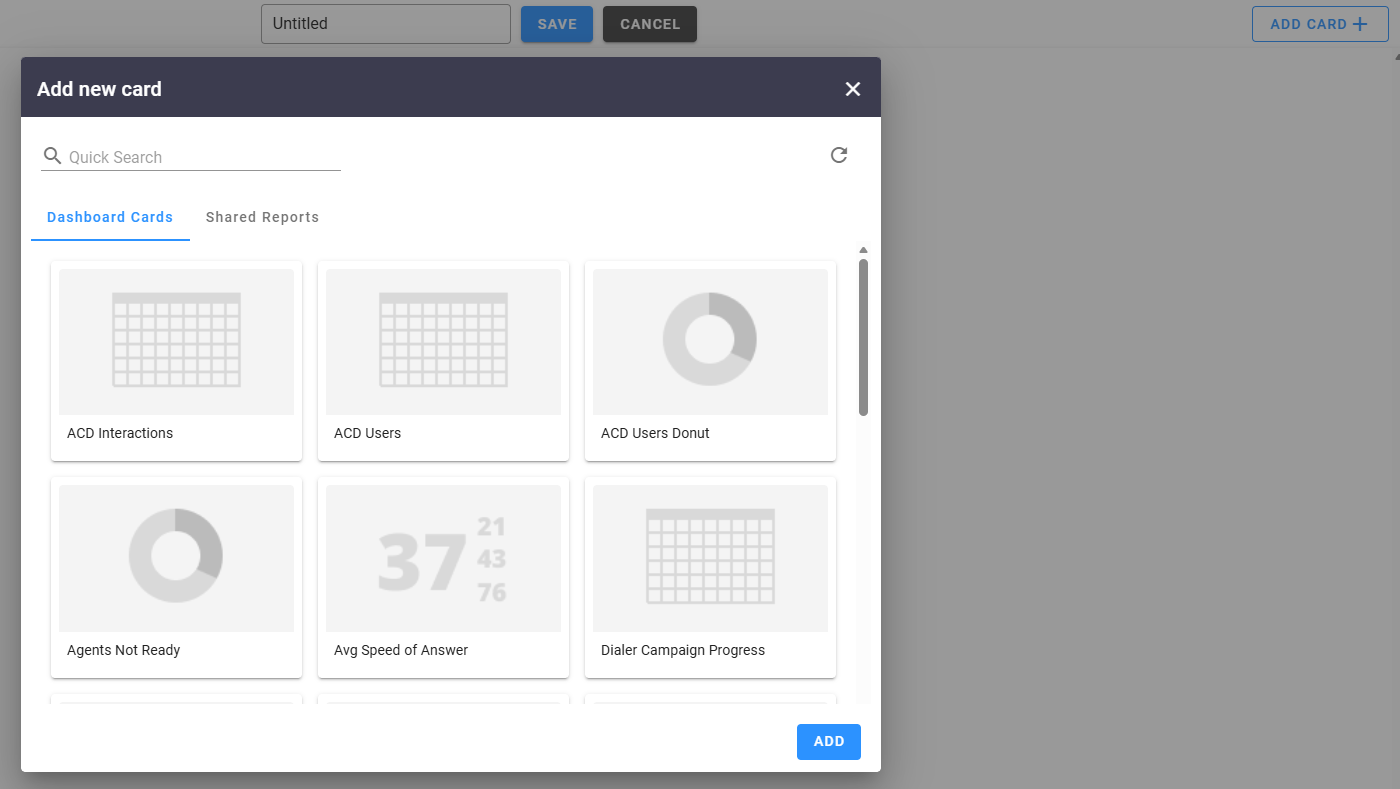
Click Add Card + at the top right. The Add new card window opens.
Pick a card from the Dashboard Cards tab, or a saved report from the Shared Reports tab. Use Quick Search to find a card by name.
Click Add. Optionally filter the card, choose its columns with the menu icon, or rename it with the Edit icon beside its name.
Repeat for each card you want, then drag and resize cards into the layout you like.
Click Save.
Cards in the library
The library holds 18 ready-made cards in three styles: Counter (a single number or percentage), Donut (a chart; hover a segment for its count), and Grid (a table). Several appear on the default dashboards under a shorter name.
Card in the library |
Shown on the default dashboards as |
|---|---|
ACD Interactions |
Active Contacts |
ACD Users |
Agents |
ACD Users Donut |
ACD Users |
Agents Not Ready |
Not Ready Breakdown |
Avg Speed of Answer |
Not on a default dashboard |
Dialer Campaign Progress |
Not on a default dashboard |
Diverted to External |
Not on a default dashboard |
In Queue Availability |
Queue Handling |
In Queue Counter |
In Queue |
Inbound Abandon Rate |
Not on a default dashboard |
Interactions In Progress |
Not on a default dashboard |
Interactions In Queue State Donut |
Waiting by Queue |
Interactions State Total Donut |
Live Interactions by State |
Occupancy |
Not on a default dashboard |
Service Level |
Not on a default dashboard |
Today's Handle Time |
Today's Handle Time |
Today's Queue Summary |
Not on a default dashboard |
Utilization % |
Not on a default dashboard |
New card types can't be created. To show something the library doesn't cover, share a report as a card, below.
Shared Reports as cards
Reports built in Reporting can be shared as dashboard cards with a chosen audience. Anyone in that audience sees the card on their dashboard, even without a reporting role. This is the way to put a custom report, such as a detail report filtered to one queue, in front of your team. Shared reports can be a table or a chart, and the person sharing sets a refresh interval that applies to everyone who adds the card.
💡 Tips
Start with the two defaults for a week before building your own; you will learn which numbers your team actually watches.
Supervisors: keep Home Dashboard open during busy hours and switch to Agents & Contacts when In Queue or Longest Wait climbs.
Wallboards: build a dashboard with only In Queue, Waiting by Queue, and ACD Users, then open it with the New Window icon on a shared screen.
Seeing less data than expected? Access to data can be limited by role. LineOne Support can check this for you.
Questions? Contact LineOne Support by dialing 611, calling 337-417-9020, emailing Support@Line.One, or visiting Line.One/Support.